Configure a RAG agent's sources
The Configuration view defines the document sources that are ingested and made available to the RAG agent.
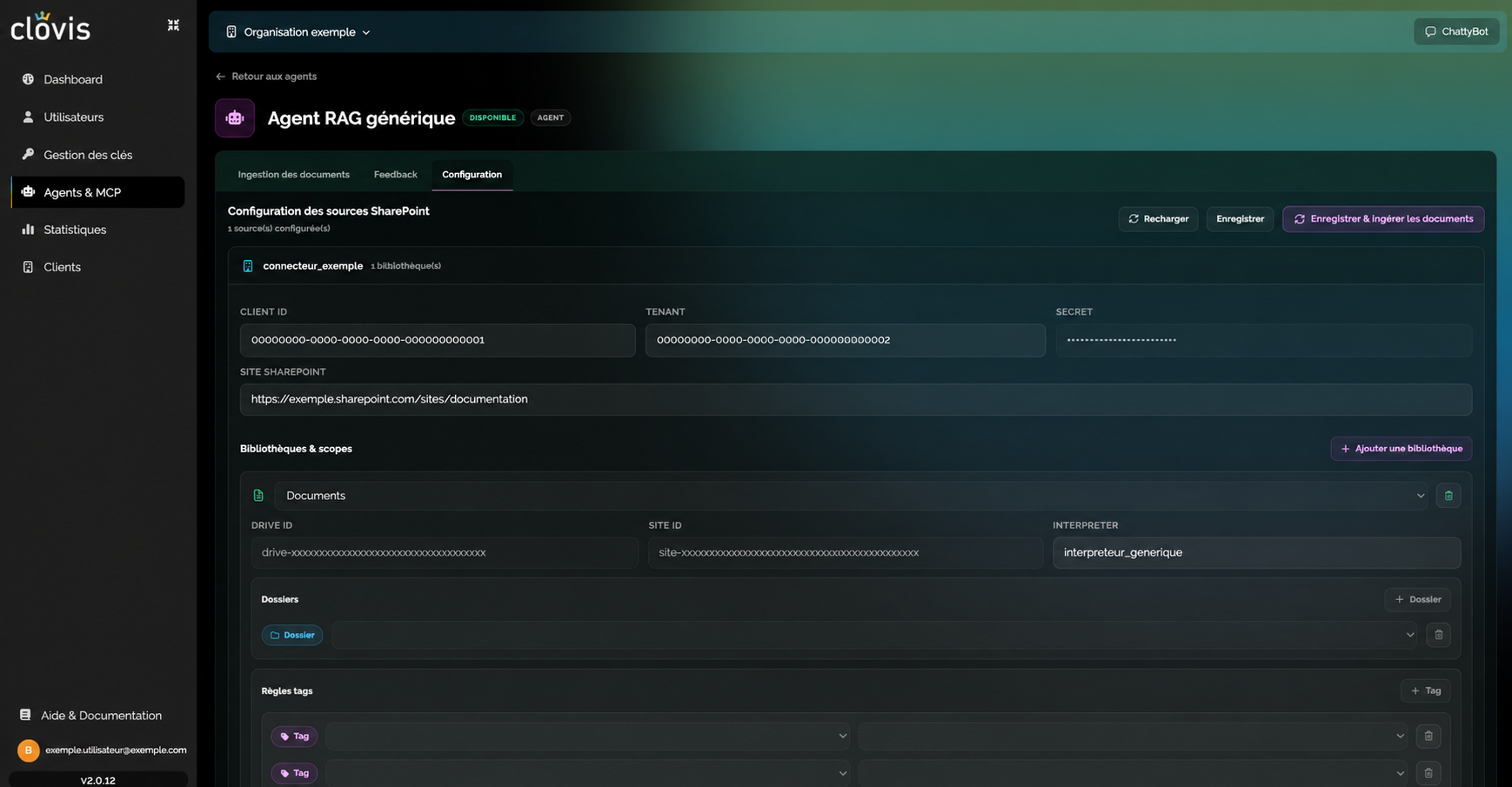
Console path: Agents > [Agent] > Configuration.
SharePoint prerequisites
Before configuring a source, ensure that the Microsoft Entra ID app registration has:
- the Sites.Selected application permission;
- Read permission for the relevant SharePoint site.
Sites.Selected alone is not sufficient: the application must also be explicitly granted read access to the configured site.
Add and initialize a site
- Select + Add a site.
- Enter the requested connector details, including Client ID, Tenant, Secret, and the SharePoint site URL.
- Select Save.
- Select Reload so Clovis can discover the available libraries, folders, and tags.
+ Add a library remains disabled until the connector information has been saved and reloaded. It also remains unavailable if no library was discovered.
Define the ingestion scope
- Select + Add a library.
- Choose the library to ingest.
- Enter the name of the document interpreter defined when the agent was created.
- To narrow the scope, select + Folder, then choose one or more folders.
- If necessary, add one or more ingestion rules with + Add a rule.
- Add the required criteria to each rule with + Add a condition.
Conditions within the same rule use the logical AND operator: all must be met. Multiple rules use the logical OR operator: a file is included as soon as it satisfies one rule.
| Configuration | Ingested scope |
|---|---|
| Library without folders or rules | The entire library. |
| One or more folders without rules | All files in the selected folders. |
| Rules without folders | Files matching the rules across the entire library. |
| Folders and rules | Files in the selected folders that match the rules. |
An entire SharePoint site cannot be ingested. You must configure at least one library.
Save or synchronize
When configuration is complete, you can:
- select Save to keep your changes. They will be applied during the next automatic synchronization;
- select Save & ingest documents to save the configuration and start ingestion immediately.
You can also select Save, open Document ingestion, and select Resynchronize.
After starting ingestion, check the counters and statuses on the ingestion page to confirm that the expected documents have reached Ready status.