Connecting to Dropbox
This guide helps administrators create a Dropbox app for their organization and share its App key, App secret, and Access token with the Clovis team to prepare a RAG agent connection.
1. Create the application
Sign in with the Dropbox account that can access the documents to ingest. For a business account, check with your administrator that connecting applications is allowed.
- Open the Dropbox App Console and click Create app.
- Choose Scoped access.
- Select the appropriate access type:
- App folder limits access to the application's dedicated folder. Place the documents in this folder.
- Full Dropbox allows access to the account's files and folders, including existing documents outside the app folder.
- Enter a unique name, such as
Clovis-RAG-your-organization, and click Create app.
Full Dropbox grants a broader scope than just the folders you intend to ingest. Tell the Clovis team which folders to synchronize. It does not automatically grant access to every account in a Dropbox Business team.
2. Configure permissions
On the Permissions tab, enable the document read permissions:
| Permission | Purpose |
|---|---|
files.metadata.read | List folders and read file information. |
files.content.read | Read and download documents for ingestion. |
Click Submit to save. Add further permissions only if the Clovis team requests them for your configuration; reading documents does not require write or delete access.
These steps follow the official Dropbox quick start guide.
3. Retrieve the App key, App secret, and Access token
- Return to the application's Settings tab.
- Copy the App key.
- Reveal the App secret using Show if necessary, then copy it into your secrets manager.
- Under OAuth 2, find Generated access token and click Generate.
- Copy the entire token without adding spaces or line breaks.
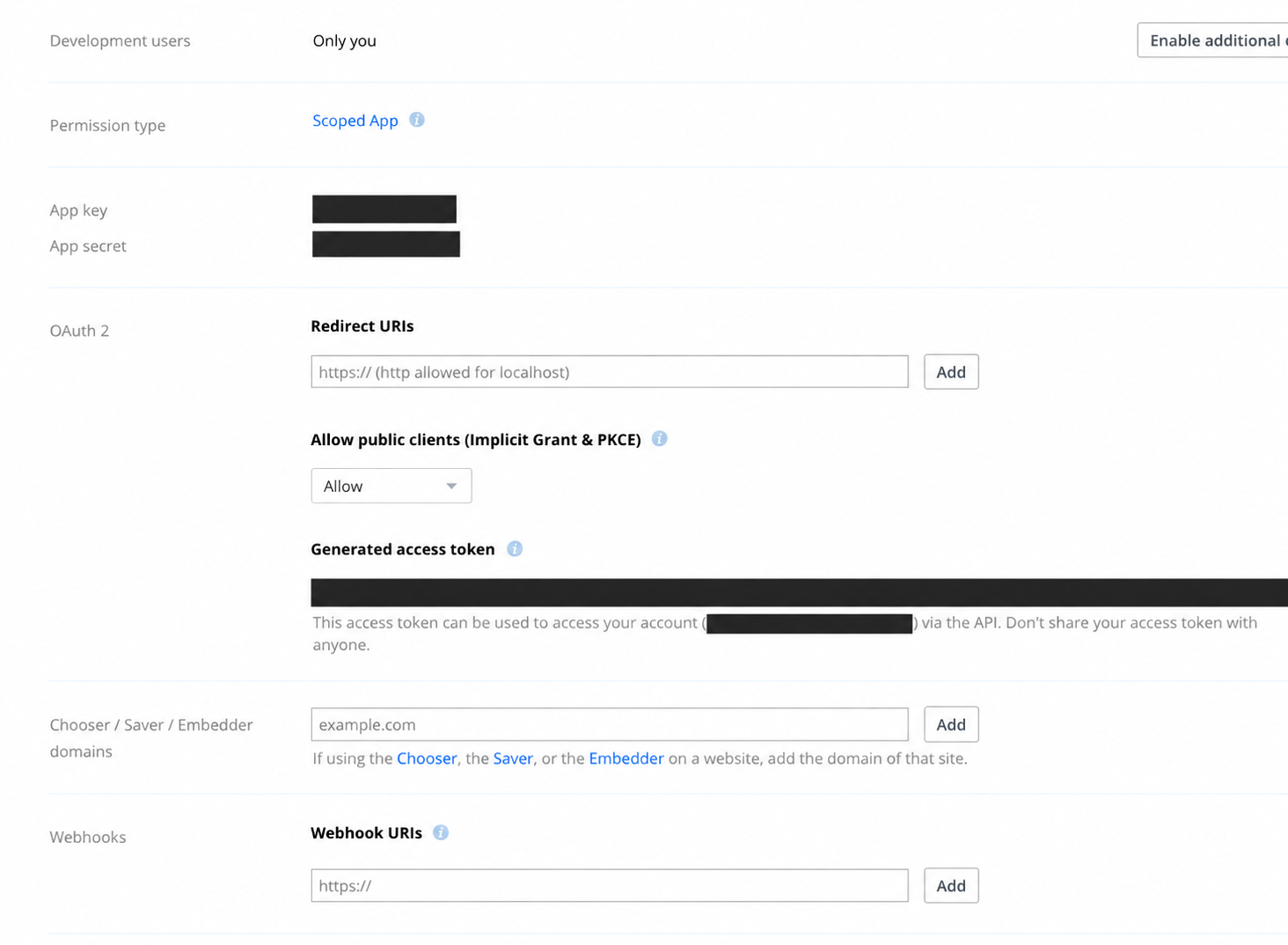
Sensitive information in these screenshots has been redacted. Retrieve the actual values from your own Dropbox console.
This token lets you test access to the account that generated it and expires after a short period. It cannot provide permanent synchronization on its own. Coordinate an OAuth authorization with offline access and a refresh token with the Clovis team for a lasting connection. See the Dropbox OAuth guide.
4. Share the credentials with us
Agree on a secure secret-sharing channel with your Clovis contact, such as a shared vault or an expiring link restricted to authorized recipients. Send these three values through that channel:
| Item | Location |
|---|---|
| App key | Settings → App key |
| App secret | Settings → App secret |
| Access token | Settings → OAuth 2 → Generated access token |
Also specify your organization, the RAG agent, the application name, the access type (App folder or Full Dropbox), and the folder paths to ingest. Coordinate token generation with the team so they can test it before it expires.
Do not put these secrets in screenshots, tickets, code repositories, or plain-text emails. Never share your Dropbox password.
5. Authorize the connection during an appointment with Clara
Schedule an appointment with Clara to complete this authorization together. Send her the code provided by Dropbox immediately so she can finalize the connection during the appointment.
- Clara sends you a Dropbox authorization URL.
- Open the link and sign in to the Dropbox account that can access the documents to ingest.
- Check the application name and requested permissions, then authorize access.
- Dropbox displays an authorization code on the Access Code Generated screen.
- Copy the code and send it immediately to Clara through the agreed secure channel. Keep the page open until she confirms the connection is complete.
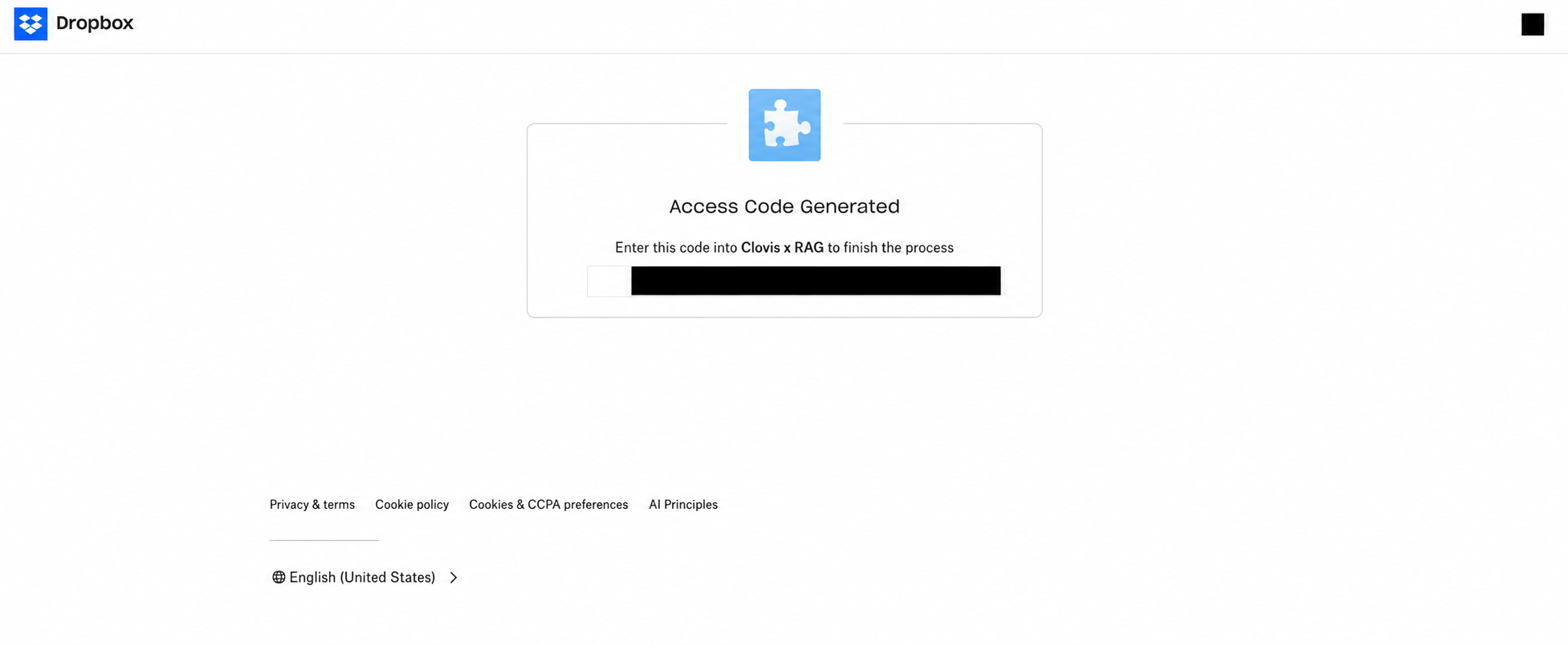
The authorization code is temporary and single-use: wait until Clara is available before opening the link and starting authorization. If the code expires, a new authorization will be needed.
The code displayed here is different from the Access token in step 4. Clara handles the final connection setup; you do not need to perform any further technical steps.
6. Verify the connection
Once configuration is completed with the Clovis team, check that the intended folders are accessible, start an ingestion, and review the document status in Document ingestion.
If it fails, check the authorized account, the App folder / Full Dropbox scope, saved permissions, and token expiration. After changing permissions, obtain a new authorization or generate a new token before retrying.