Monitor document ingestion
When you open a configured agent, the Document ingestion view appears by default. It lets you synchronize the document knowledge base, check the process, and diagnose failures for individual documents.
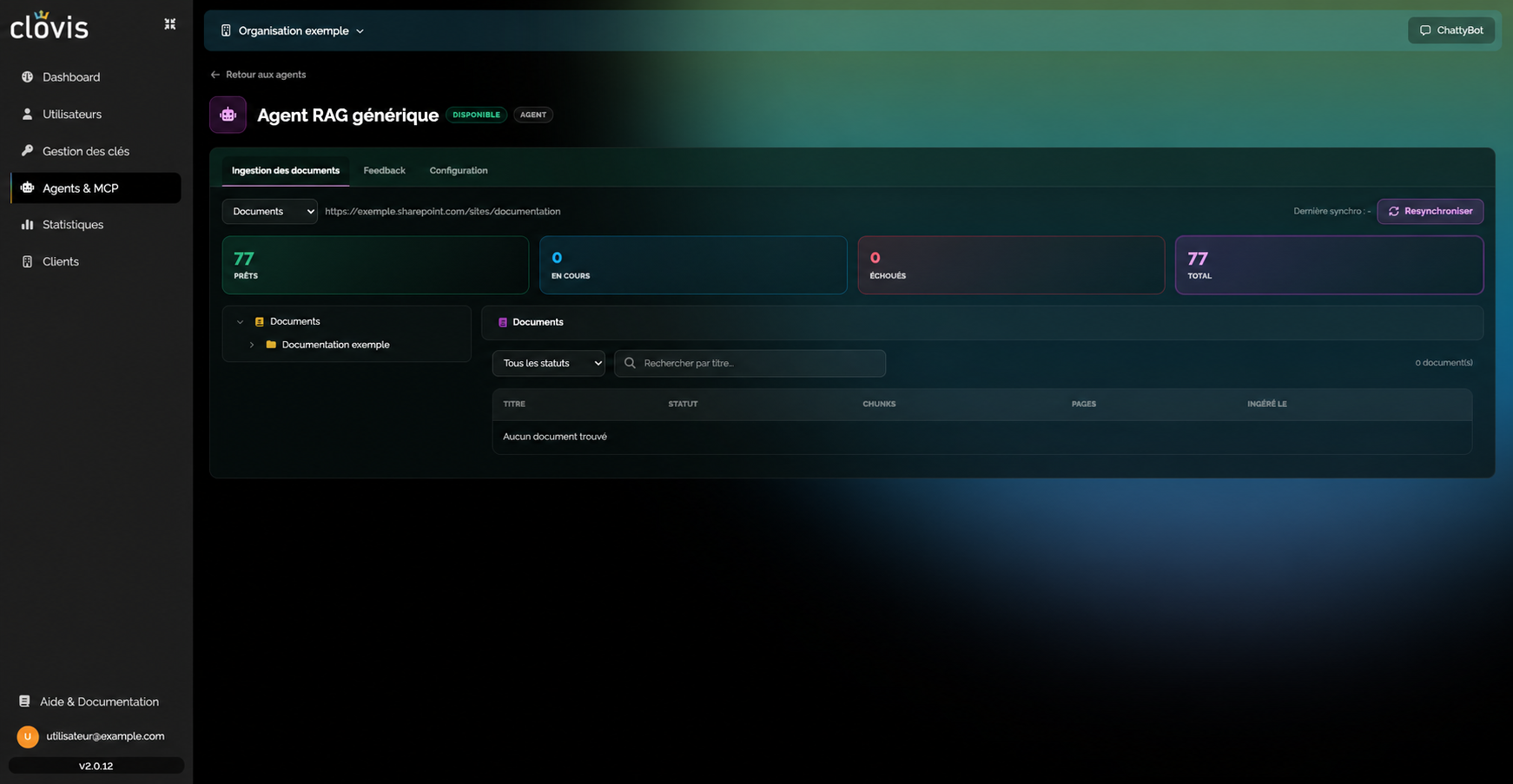
Console path: Agents > [Agent] > Document ingestion.
Understand the ingestion view
The page contains:
- Source selector: choose the document source whose ingestion you want to check.
- Last synchronization: view the date and time of the latest synchronization.
- Resynchronize: manually restart knowledge-base ingestion.
- Summary counters: view the number of documents that are Ready, In progress, Failed, and the Total. Select a counter to filter by that status.
- Folder tree: browse the connected source, such as a SharePoint site or Drive space. Selecting a folder updates the indicators and document list.
- Filters: filter documents by status or search for a specific title.
- Document list: view each document's title, ingestion status, number of chunks, page count, and ingestion date and time.
Understand statuses
| Status | Description |
|---|---|
| Discovered | The document was found and is waiting to be analyzed by the configured interpreter. |
| In progress | Text-understanding and, if required, OCR components are analyzing the document. Its content is then divided into meaningful segments (chunks) and vectorized by an embedding model. |
| Ready | The document was analyzed and its chunks were vectorized. The agent can use it to answer user questions. |
| Failed | The document could not be ingested. The reason appears in red below its title. |
Restart synchronization
- Select the source to synchronize.
- Select Resynchronize.
- Follow the In progress, Ready, and Failed counters.
- If a failure occurs, find the relevant document and review the message below its title.
Diagnose ingestion
First check the scope selected in the folder tree. Then review Failed documents and confirm that expected documents have a Ready status.