First sign-in
You can sign in to Clovis for the first time from the Clovis console. The next steps depend on the authentication method configured for your organization’s domain.
You do not need to select an authentication method yourself. Enter your business email address: Clovis detects its domain name and automatically enables SSO when that domain is registered as federated.
Before you begin
Make sure that:
- your Clovis account has been created and authorized by your organization;
- you are using your business email address;
- you have either your business credentials for SSO or the temporary password provided when your account was created.
Identify your sign-in path
| Situation | Screen displayed | Authentication |
|---|---|---|
| Your organization’s domain is federated | Only the email address is requested | Sign in with your organization’s identity provider |
| The domain is not federated | An email address and password are requested | Sign in with the temporary password, then set a new password |
Sign in with SSO
- Open console.clovis-ai.fr.
- Enter your business email address.
- Clovis automatically recognizes the federated domain and displays the SSO sign-in flow without a password field.
- Select Sign in.
- Authenticate with your organization’s identity provider, then complete any required security steps.
- You are then redirected to Clovis.
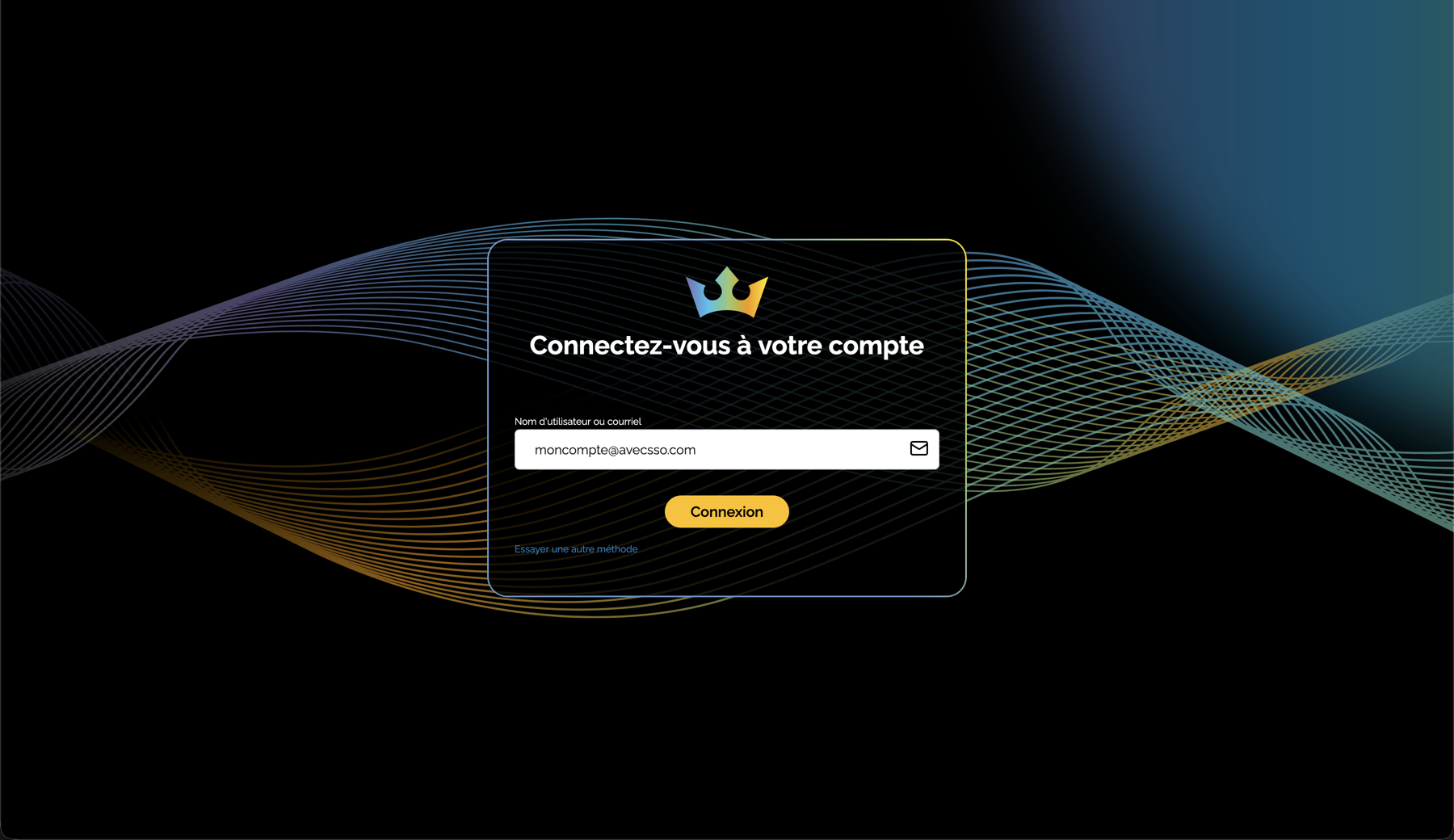
SSO is enabled based on the domain name in the email address you enter. If a password field appears even though your organization uses SSO, check the address and then contact your Clovis administrator.
Sign in without SSO
When SSO is not configured for your domain, a temporary password is generated when your account is created.
- Open console.clovis-ai.fr.
- Enter the email address associated with your Clovis account.
- Enter the temporary password you received.
- Select Sign in.
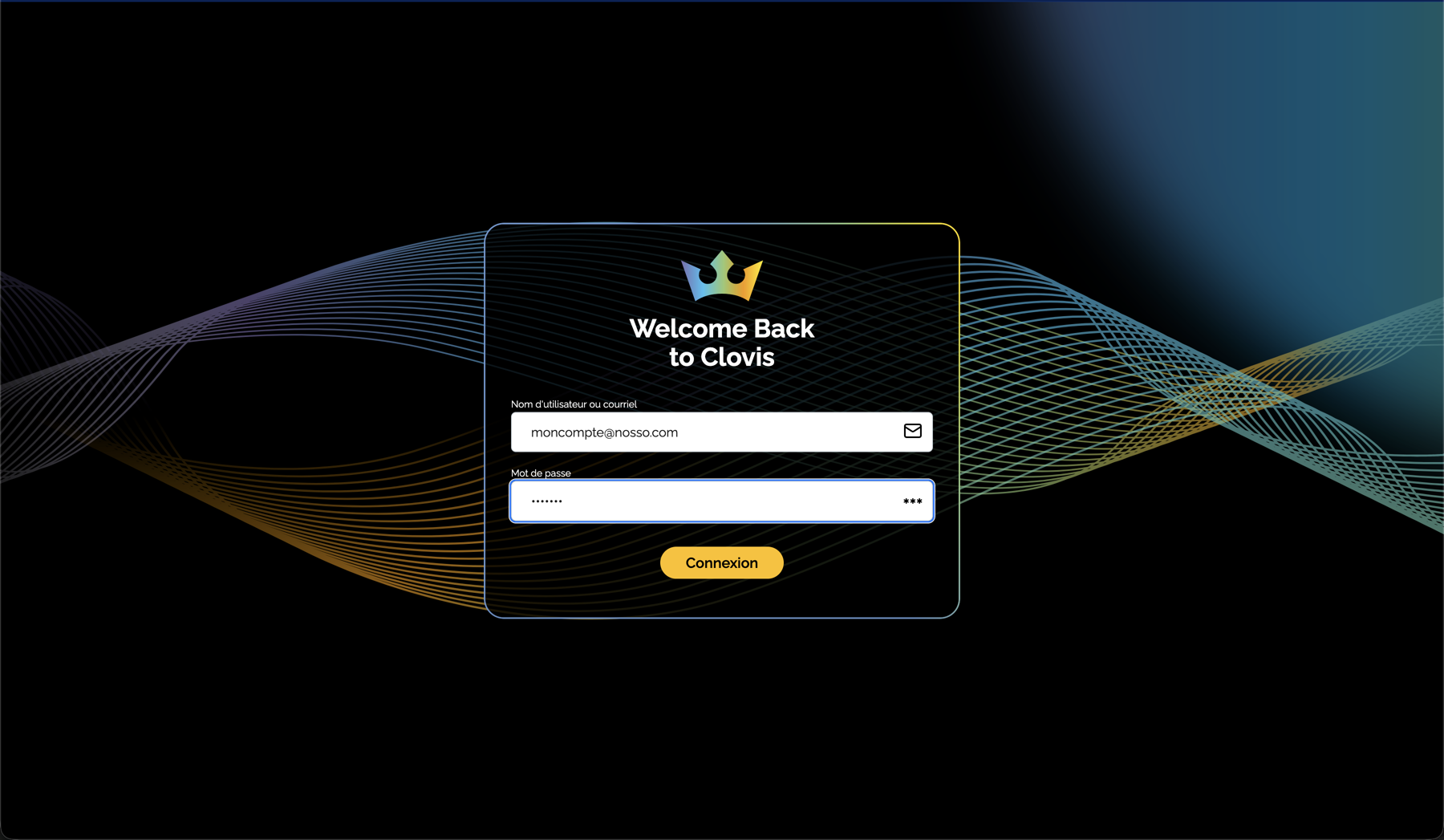
Set your new password
When you first sign in, Clovis requires you to replace the temporary password.
Your new password must contain:
- at least 12 characters;
- at least one special character.
Enter the new password once, confirm it in the second field, then select Submit. Use a unique password and preferably store it in a password manager.
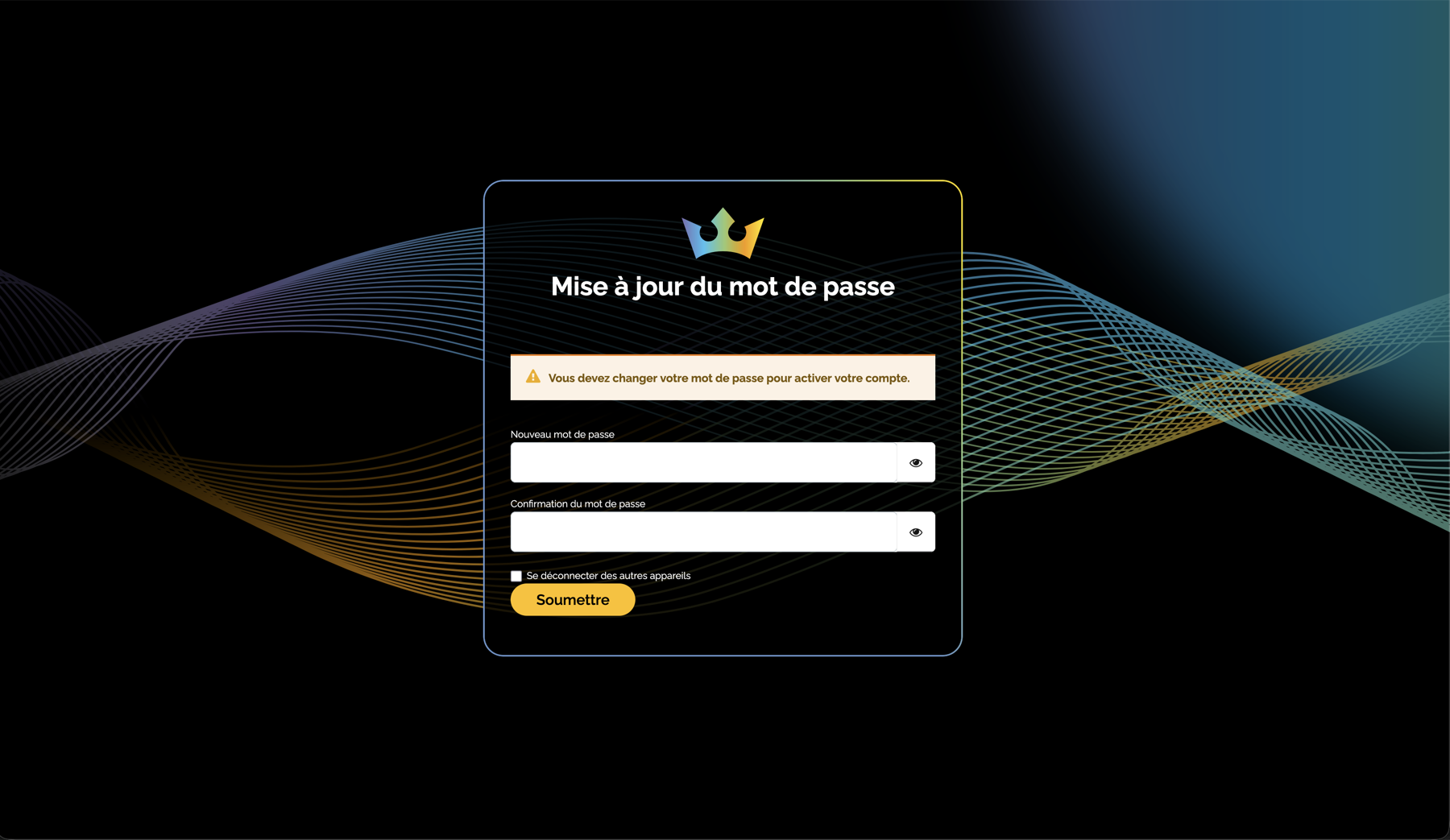
After changing the password, use it for future sign-ins. The temporary password is no longer valid.
After signing in
Check that the expected spaces, models, and features are available. Their visibility depends on the permissions assigned to your account and organization.
Troubleshoot sign-in issues
| Issue | What to check |
|---|---|
| The password field appears even though you use SSO | Check the address you entered and make sure its domain is registered as federated. |
| SSO redirection fails | Check that your business account is active and that you meet your organization’s access requirements. |
| The temporary password is rejected | Make sure it was entered without extra spaces, or ask your administrator to reset it. |
| The new password is rejected | Make sure it contains at least 12 characters, including at least one special character, and that both entries match. |
| An expected feature is not visible | Contact your organization’s Clovis administrator to verify your permissions. |
If the problem persists, send your administrator the time of the attempt and the displayed error message. Never share your password, even if it is temporary.
Administrators can refer to the Configure SSO with Microsoft Entra ID guide.