MCP Docs
 MCP Docs
Turn your ideas into documents ready to share, directly in Clovis. This MCP is dedicated to PDF and Word (.docx) files.
Describe the result you want, provide your content, and download your file. You can then continue the conversation to expand a document or correct its text.
We recommend using this MCP with ClovisChat to create and edit files from the chat.
This MCP is currently in beta. It does not appear in your chat by default. Contact your Clovis representative to request access.
Explore examples
Try the prompts below with your own content.
 PDF
First page preview · Click to enlarge
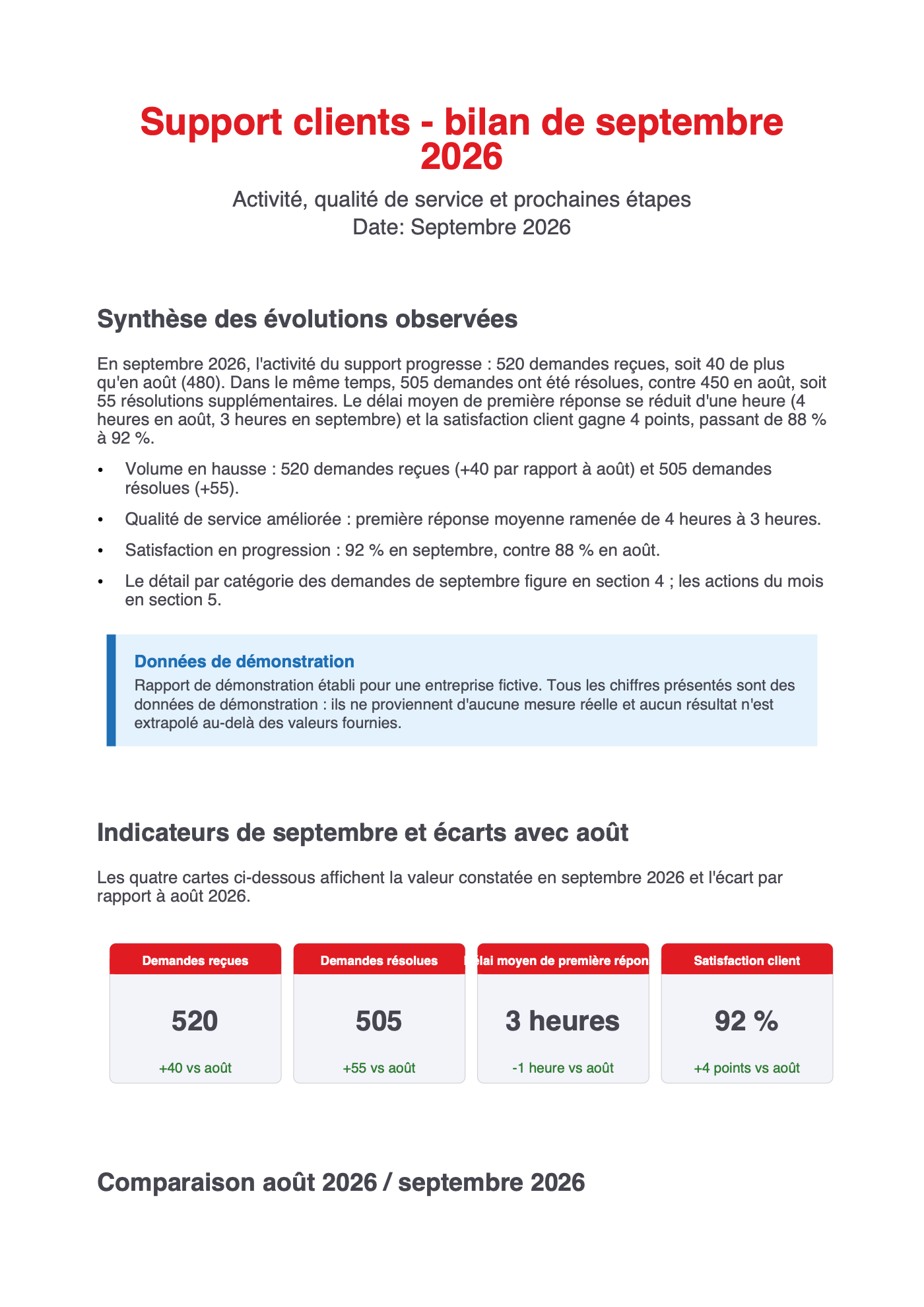
Customer support — monthly review
Report generated from the PDF prompt using Claranet brand guidelines.
Download PDF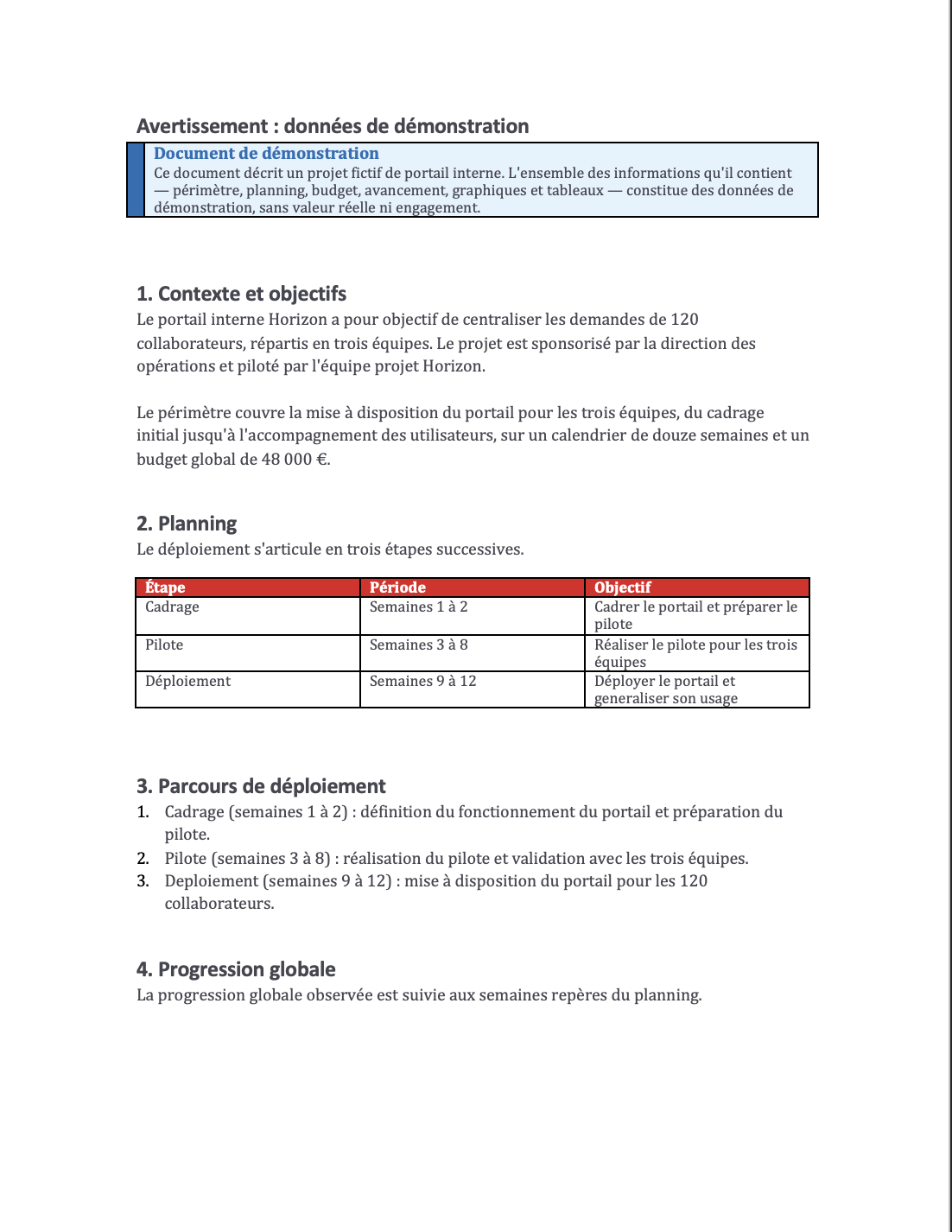 Word
Context and schedule preview · Click to enlarge
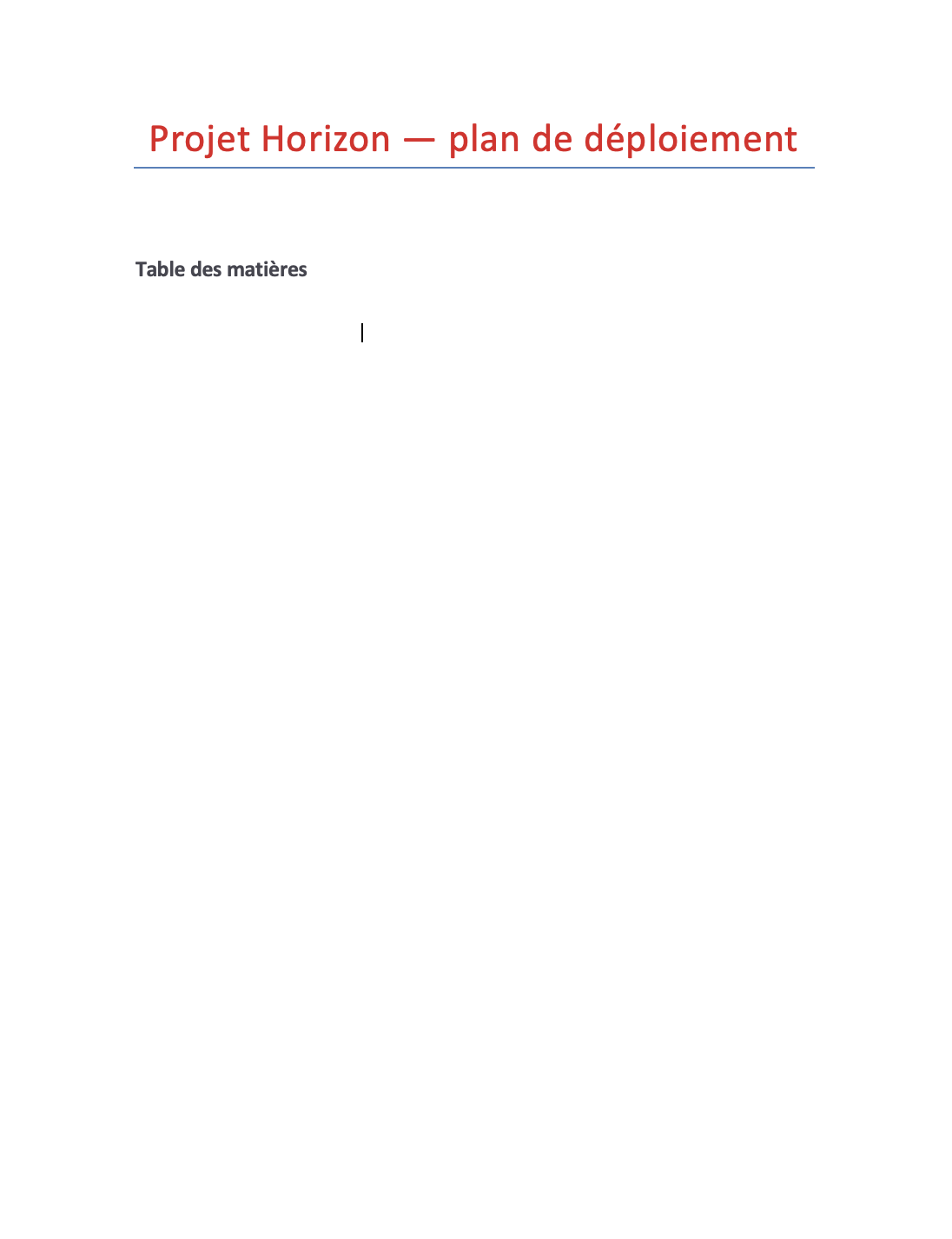
Horizon — rollout plan
Document generated from the Word prompt using Claranet brand guidelines.
View pagesEnable the MCP in your chat
Select MCP Servers in the input area, then enable clovis-docs for the conversation. If you cannot see it, contact your Clovis representative to request access. See the MCP page for the activation steps.

Then copy one of the prompts below. The relevant MCP must already be enabled. All names and figures in these examples are fictional and can be replaced with your own data.
Use your brand guidelines
For Word (.docx) and PDF, send your brand guidelines to your Clovis representative, including the colors and presentation rules to apply. Customization uses these guidelines rather than a Word or PDF template.
Once the guidelines have been configured in the MCP, mention them at the start of your prompt. Mentioning your company name does not replace this initial configuration. Without configured brand guidelines, documents use a white background by default.
In the examples, replace Claranet with your company name.
PDF
Create a formatted report to share a summary, metrics, and recommendations in a single file.
Example: produce a monthly customer support report
Use Claranet's brand guidelines (replace Claranet with your company name).

Use the document generation MCP to create a PDF report titled
“Customer support — September 2026 review” for a fictional company.
Subtitle: “Activity, service quality, and next steps”.

Demo data:
- Requests received: 480 in August, 520 in September.
- Requests resolved: 450 in August, 505 in September.
- Average first response time: 4 hours in August, 3 hours in September.
- Satisfaction: 88% in August, 92% in September.
- Breakdown of the 520 September requests:
  access 180, billing 120, usage 160, incidents 60.
- Actions: new FAQ on September 5, team training on September 15,
  shared tracking launched on September 25.

Prepare five sections:
1. A short summary of the observed changes.
2. Four metric cards showing the September value and the change
   from August: +40 received, +55 resolved, −1 hour, +4 satisfaction points.
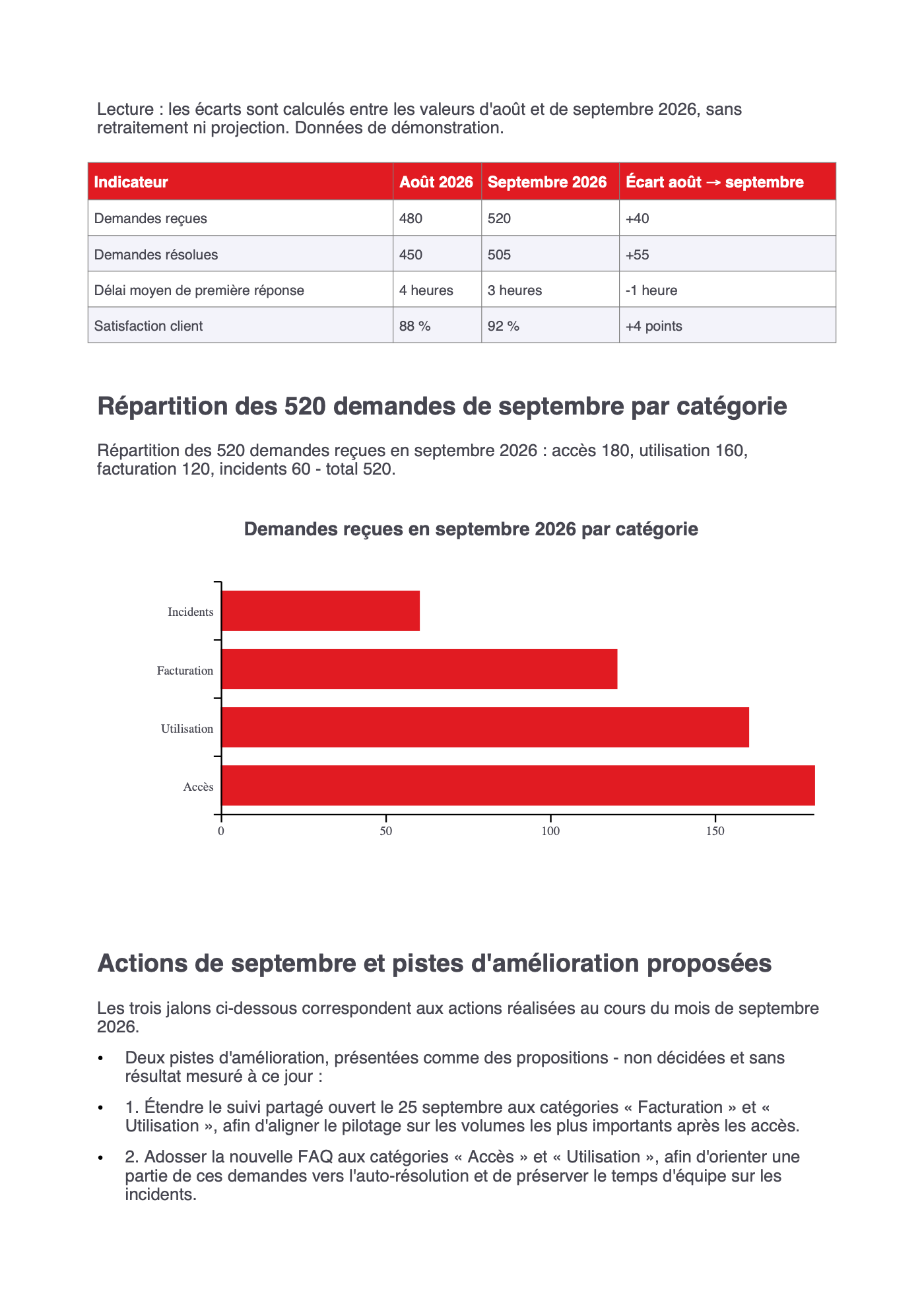
3. A table comparing August and September.
4. A bar chart of September requests by category.
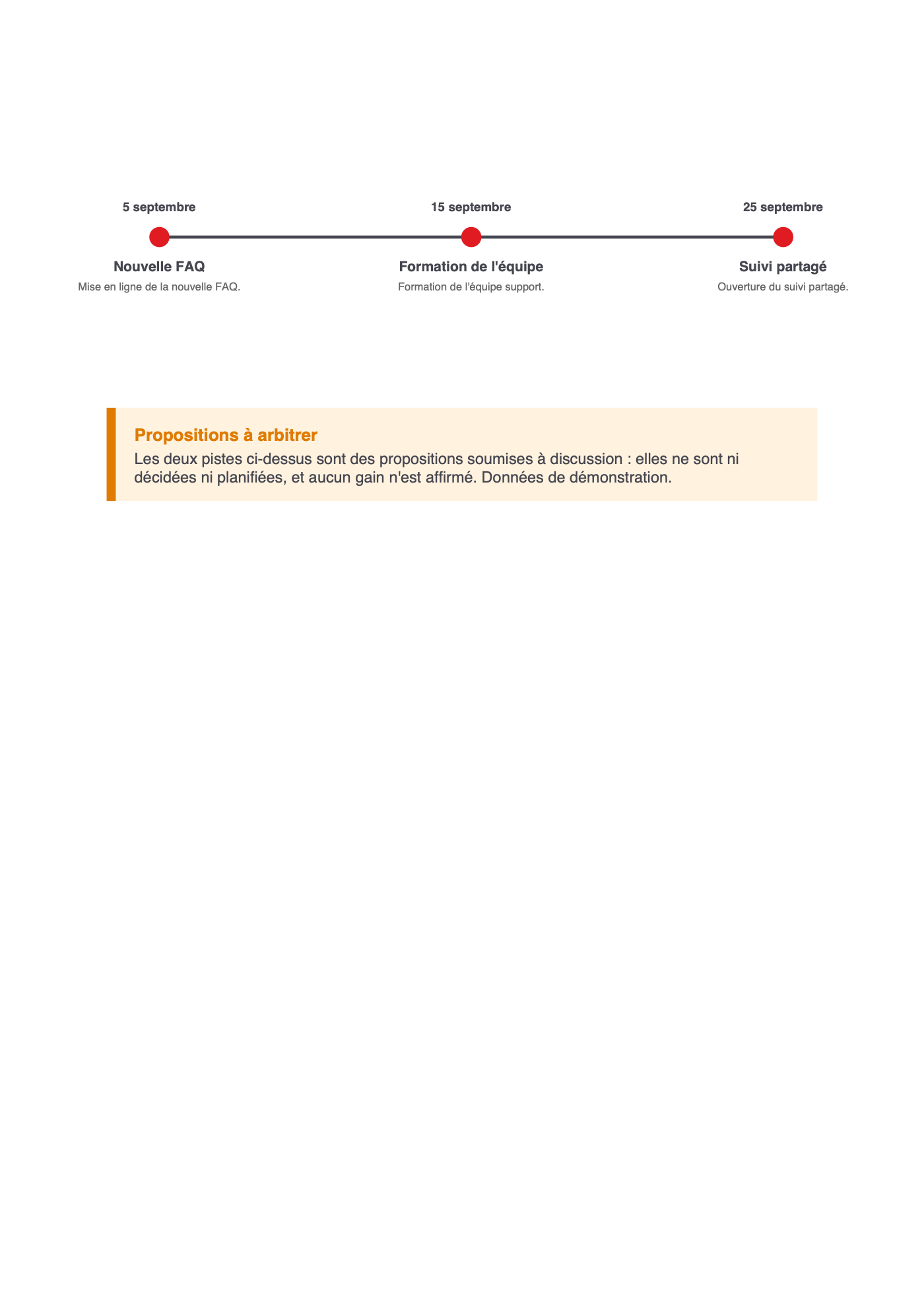
5. A timeline of the three actions, followed by two improvement ideas
   clearly presented as proposals.

Follow the presentation rules and colors of the configured brand guidelines,
with well-spaced tables and readable charts.
Label the report “Demo data”.
Avoid splitting a table across pages and do not invent any results.
Give me the link to the PDF file.
First page preview · Click to enlarge
Customer support — monthly review
Report generated from the PDF prompt using Claranet brand guidelines.
Download PDFThe report's three pages are shown below. Click an image to enlarge it.
Features
More ideas to try
- Meeting report: “Use Claranet's brand guidelines (replace Claranet with your company name). Turn these meeting notes into a PDF report with a summary, decisions, and an action table.”
- Internal distribution: “Use Claranet's brand guidelines (replace Claranet with your company name). Add an ‘Internal use’ watermark to the PDF you just created.”
- Short version: “Use Claranet's brand guidelines (replace Claranet with your company name). Delete the last page of this PDF and give me the updated file.”
Word
Prepare a structured document you can continue editing in Word: a project plan, procedure, or detailed report.
Example: formalize a rollout plan
Use Claranet's brand guidelines (replace Claranet with your company name).

Use the document generation MCP to create a Word document titled
“Horizon project — rollout plan” for a fictional internal portal project.

Information:
- Goal: centralize requests from 120 employees across 3 teams.
- Sponsor: operations management. Project lead: Horizon project team.
- Phases: scoping in weeks 1–2, pilot in weeks 3–8,
  rollout in weeks 9–12.
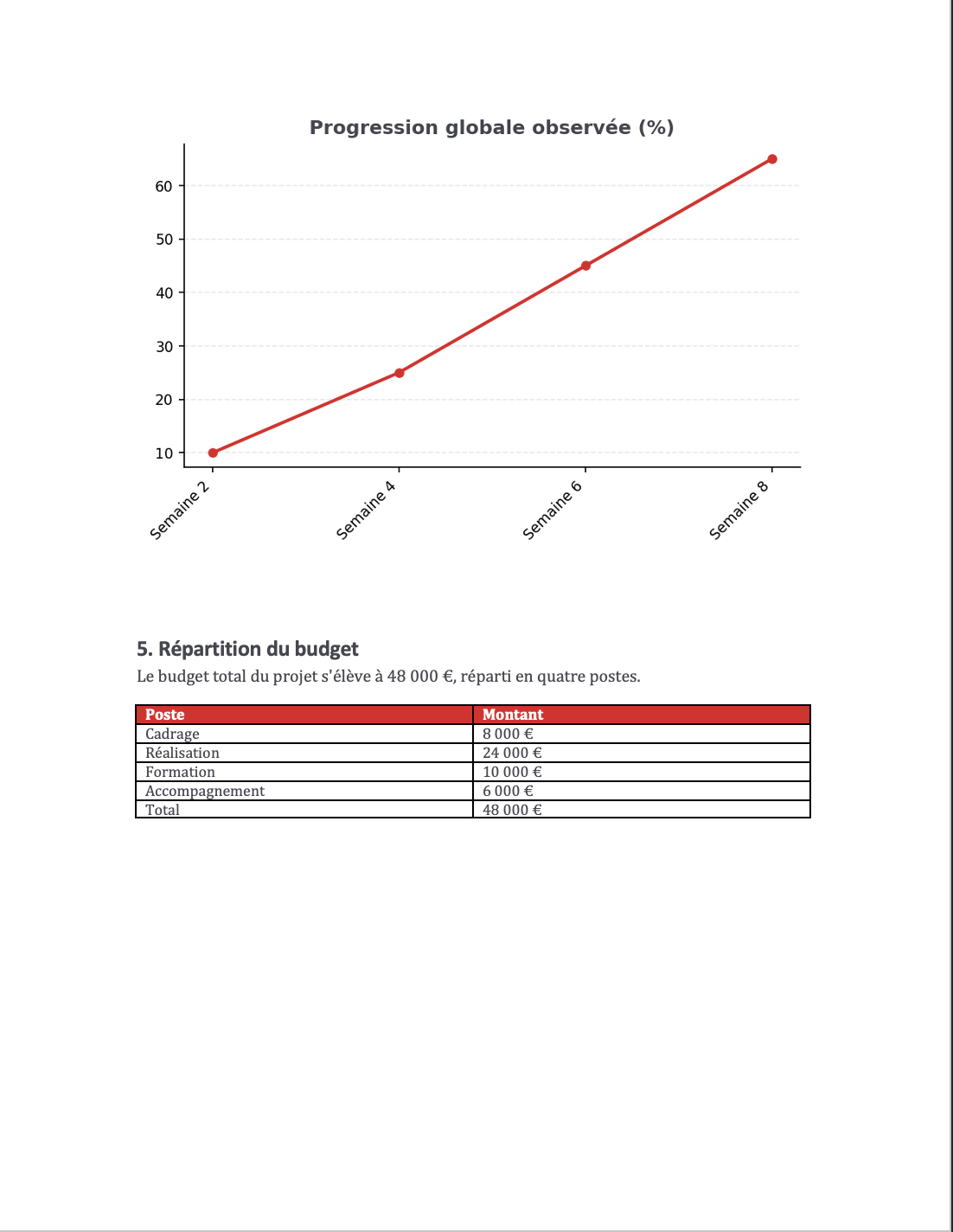
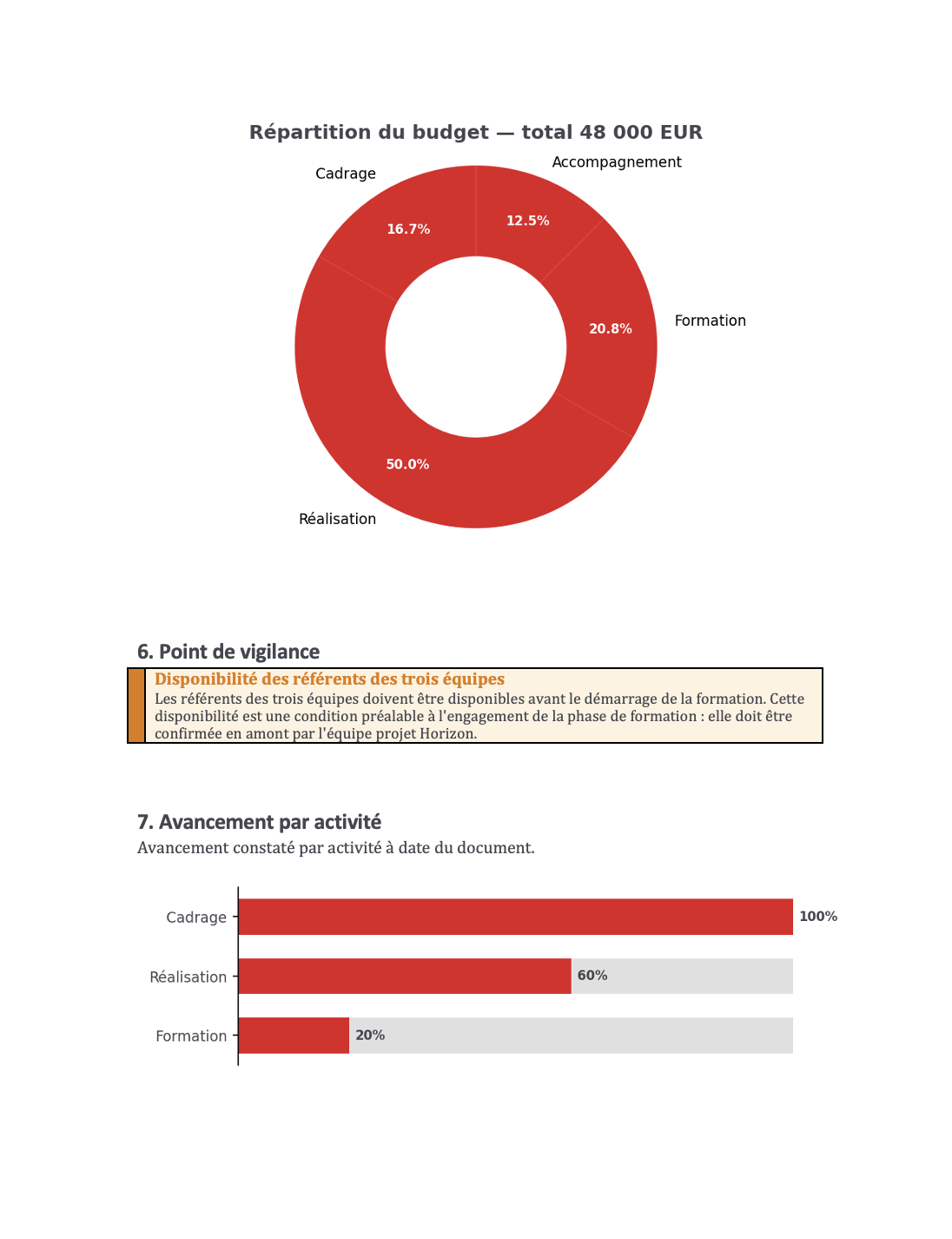
- Budget: scoping €8,000, implementation €24,000,
  training €10,000, support €6,000; total €48,000.
- Current progress: scoping 100%, implementation 60%, training 20%.
- Observed overall progress: week 2: 10%, week 4: 25%,
  week 6: 45%, week 8: 65%.
- Watch point: representatives from all three teams must be available
  before training begins.

Add a table of contents and the following sections:
1. Context and goals, in two short paragraphs.
2. Schedule, as a table with phase, period, and goal.
3. Rollout steps, as a numbered list.
4. Overall progress, with a line chart.
5. Budget breakdown, with a doughnut chart and amounts.
6. Watch point, in a clearly visible callout.
7. Progress by activity, with three progress bars.

Follow the styles, colors, and backgrounds of the configured brand guidelines,
with comfortable spacing. Clearly state that this is demo data.
Keep the supplied figures and do not invent people or results.
Give me the link to the .docx file.
The four screenshots below show the Word document generated with this prompt. Click an image to enlarge it.
Features
More ideas to try
- Onboarding procedure: “Use Claranet's brand guidelines (replace Claranet with your company name). Create a Word guide from these onboarding steps, with a numbered list and a contact table.”
- Tracking appendix: “Use Claranet's brand guidelines (replace Claranet with your company name). Add an appendix to the document with the risk table below.”
- Update: “Use Claranet's brand guidelines (replace Claranet with your company name). Replace ‘Horizon project’ with ‘Horizon program’ in the document and update its title.”
Refine your request
For a suitable result, specify the audience, structure, data, and desired style. After generation, open the file and check the text, figures, and layout. For a change, identify the file and relevant section in the same conversation.
The features described here reflect the MCP's documented uses. The examples are starting points to try with your content; available themes and icons depend on your environment.
Other creation MCPs
- MCP XLS: Excel workbooks.
- MCP Draw.io: diagrams and flowcharts.
- MCP PPTX: PowerPoint slide decks.