MCP PPTX
 MCP PPTX
Create slide decks ready to present, directly in Clovis. This MCP is dedicated to PowerPoint (.pptx) presentations. Prepare slides from your content, then refine them throughout the conversation.
We recommend using this MCP with ClovisChat to create and edit files from the chat.
This MCP is currently in beta. It does not appear in your chat by default. Contact your Clovis representative to request access.
Enable the MCP in your chat
Select MCP Servers in the input area, then enable clovis-pptx for the conversation. If you cannot see it, contact your Clovis representative to request access. See the MCP page for the activation steps.

Then copy one of the prompts below. The relevant MCP must already be enabled. All names and figures in these examples are fictional and can be replaced with your own data.
Use your PowerPoint template
Send your Clovis representative the PowerPoint file to use as a template. It defines the presentation's visual foundation, including slide layouts, backgrounds, and styles.
Once the template has been configured in this MCP, mention it at the start of your prompt. Mentioning your company name does not replace this initial configuration. Without a configured template, presentations use a white background by default.
In the examples, replace Claranet with your company name.
PowerPoint
Create a presentation for a meeting, steering committee, or sales proposal, then refine it throughout the conversation.
Example: present a project launch
Use Claranet's PowerPoint template (replace Claranet with your company name).

Use the PPTX slide generation MCP to create a five-slide PowerPoint presentation
called “Horizon — simplify everyday work for teams”.
This is a fictional internal portal project, presented to an executive committee.

Content to use:
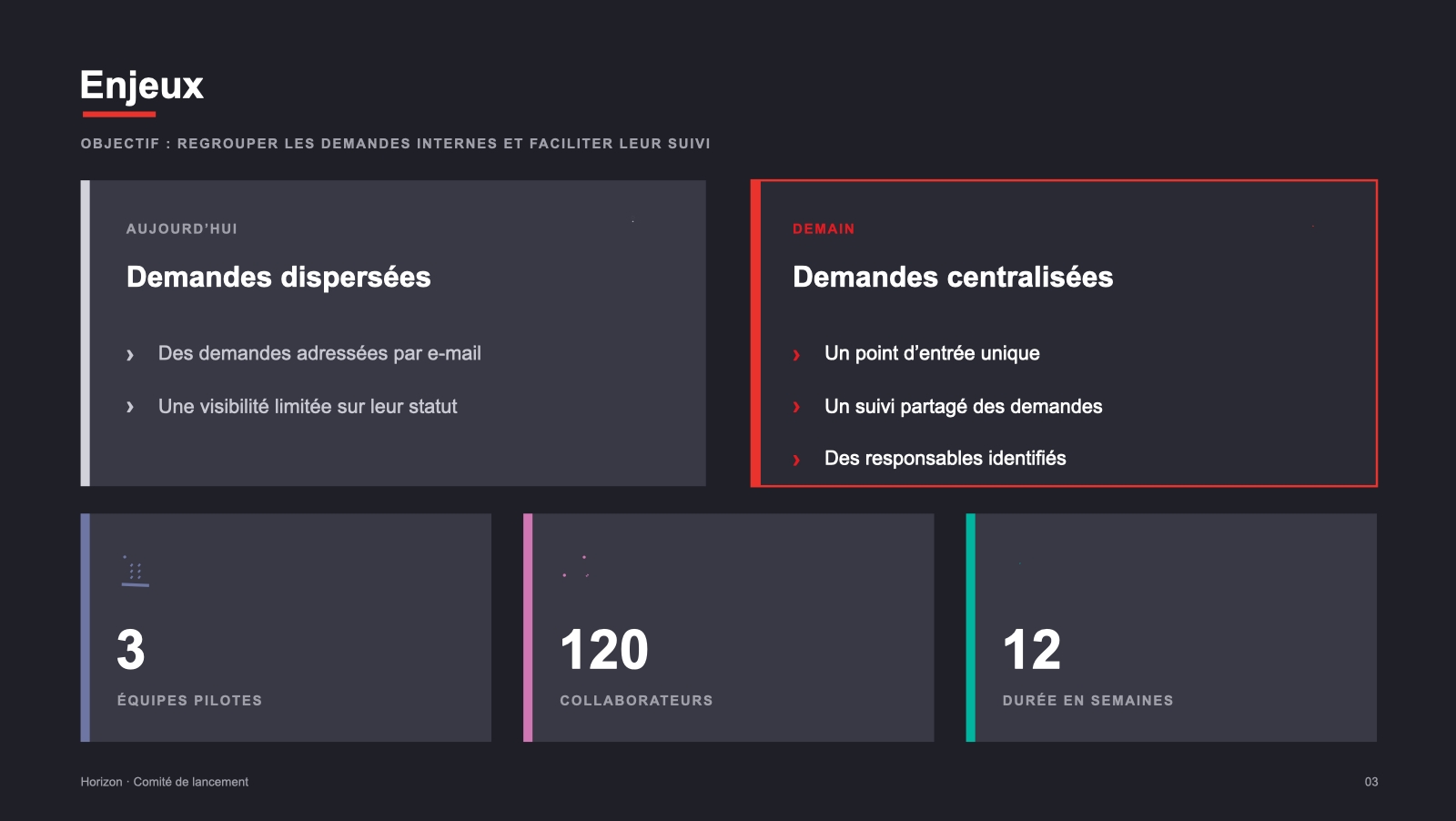
- Goal: bring internal requests together and make them easier to track.
- Scope: 3 pilot teams and 120 employees.
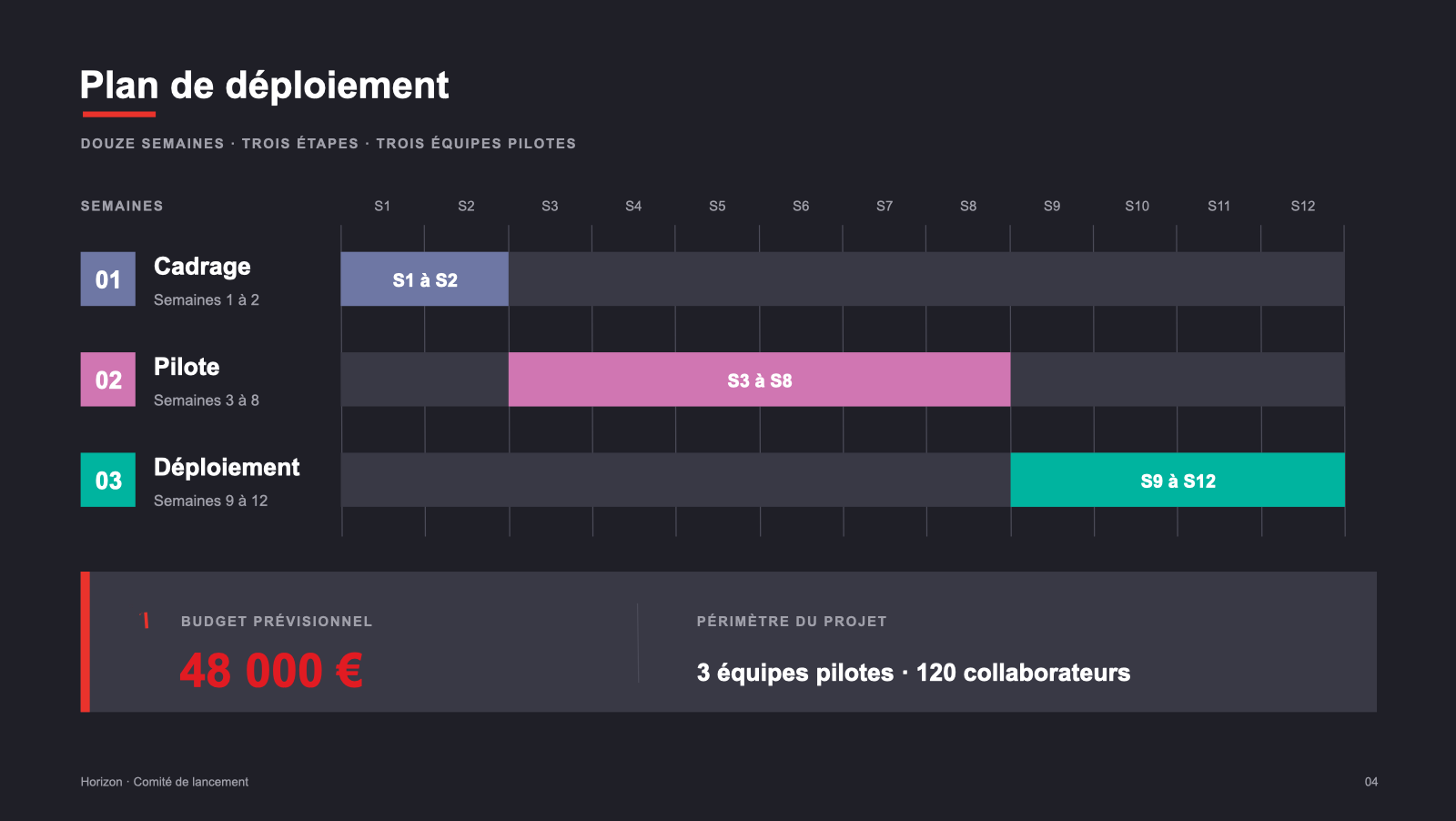
- Planned budget: €48,000.
- Planned duration: 12 weeks.
- Today: requests scattered across emails, limited visibility into their status.
- Tomorrow: one entry point, shared tracking, and identified owners.
- Phases: scoping in weeks 1–2, pilot in weeks 3–8,
  rollout in weeks 9–12.
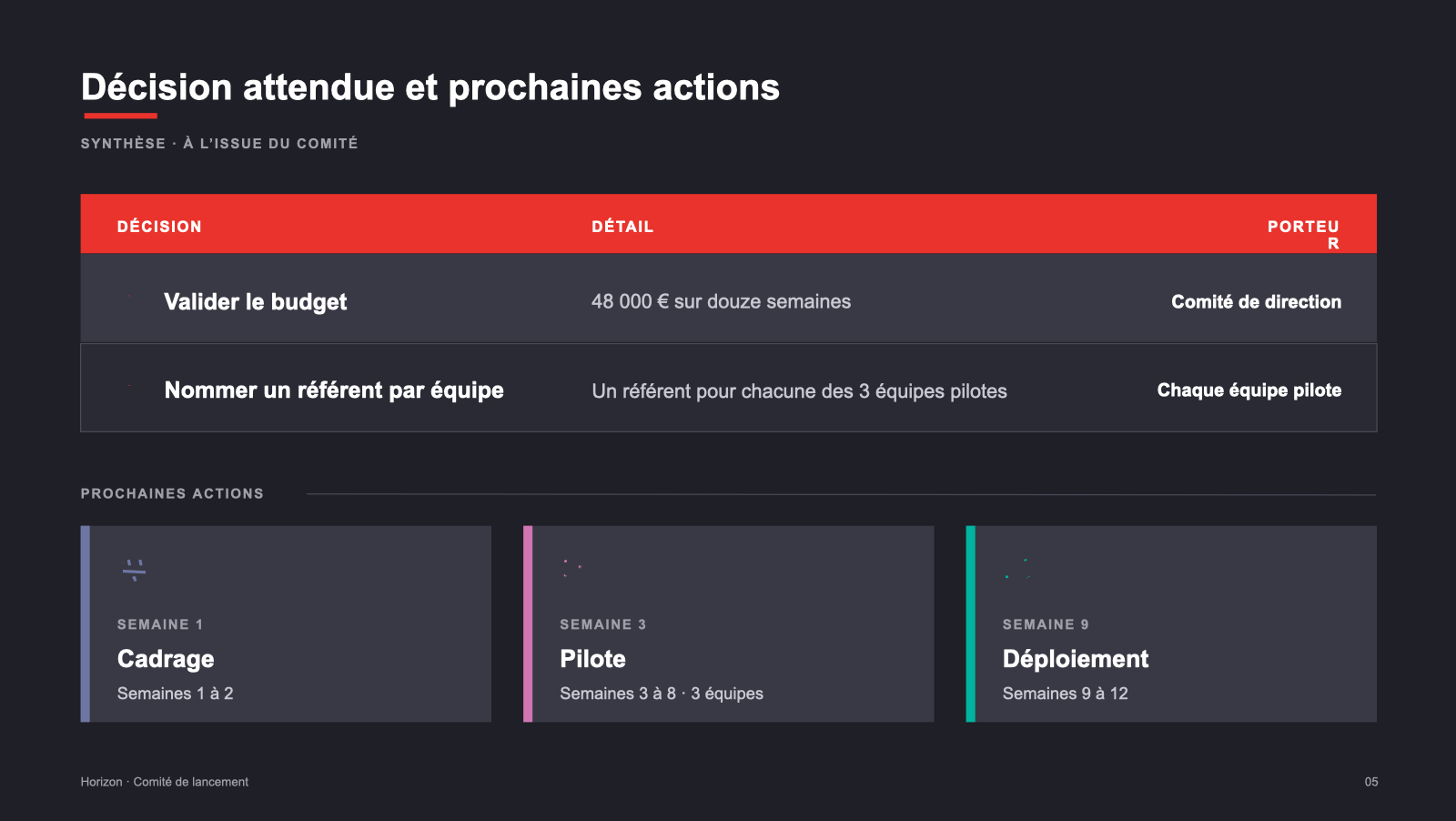
- Required decision: approve the budget and appoint a representative for each team.

Structure:
1. Cover with the title and “Launch committee”.
2. Agenda with three topics: challenges, rollout plan, required decision.
3. Challenges: before/after comparison and three scope metrics
   (3 teams, 120 employees, 12 weeks).
4. Rollout plan: the three phases, their dates, and the €48,000 budget.
5. Summary: a table of decisions to make and next actions.

Follow the colors, fonts, and backgrounds of the supplied template.
Keep typography readable and leave plenty of space.
Use a background photo on the cover if the template allows it,
and understated icons from those available. Limit each slide to a few short messages.
Do not add any results or quantified benefits that were not provided.
Check readability, prepare a preview, and give me the link to the .pptx file.
 PowerPoint
Cover preview · Click to enlarge
Horizon — launch committee
Presentation generated from the prompt below using the Claranet template.
Download PowerPointThe five slides generated with this prompt are shown below. Click an image to enlarge it.


Features
More ideas to try
- Quarterly review: “Use Claranet's PowerPoint template (replace Claranet with your company name). Create a five-slide presentation from this review, with results, watch points, and next quarter's priorities.”
- Prepare a talk: “Use Claranet's PowerPoint template (replace Claranet with your company name). Add speaker notes to each slide for a ten-minute presentation.”
- Steering committee: “Use Claranet's PowerPoint template (replace Claranet with your company name). Merge these three teams' presentations in this order: sales, operations, support.”
Refine your request
For a suitable result, specify the audience, structure, data, and desired style. After generation, open the file and check the text, figures, and layout. For a change, identify the file and relevant section in the same conversation.
The features described here reflect the MCP's documented uses. The examples are starting points to try with your content; available themes and icons depend on your environment.
Other creation MCPs
- MCP Docs: PDF and Word.
- MCP XLS: Excel workbooks.
- MCP Draw.io: diagrams and flowcharts.
- MCP PPTX: PowerPoint slide decks.