MCP WebSearch
 MCP WebSearch
Support your conversations with online sources. With MCP WebSearch, ask Clovis to find news, read an article, compare several pages, or browse part of a website to produce a summary.
You can also retrieve useful page content as text, extract information into a table, or identify relevant links before reading in more depth. Request everything from the chat in natural language.
Enable WebSearch in the chat
In the input area, select MCP Servers, then enable WebSearch for the conversation. If the server does not appear, contact your organization's administrator or your Clovis representative to check your access.
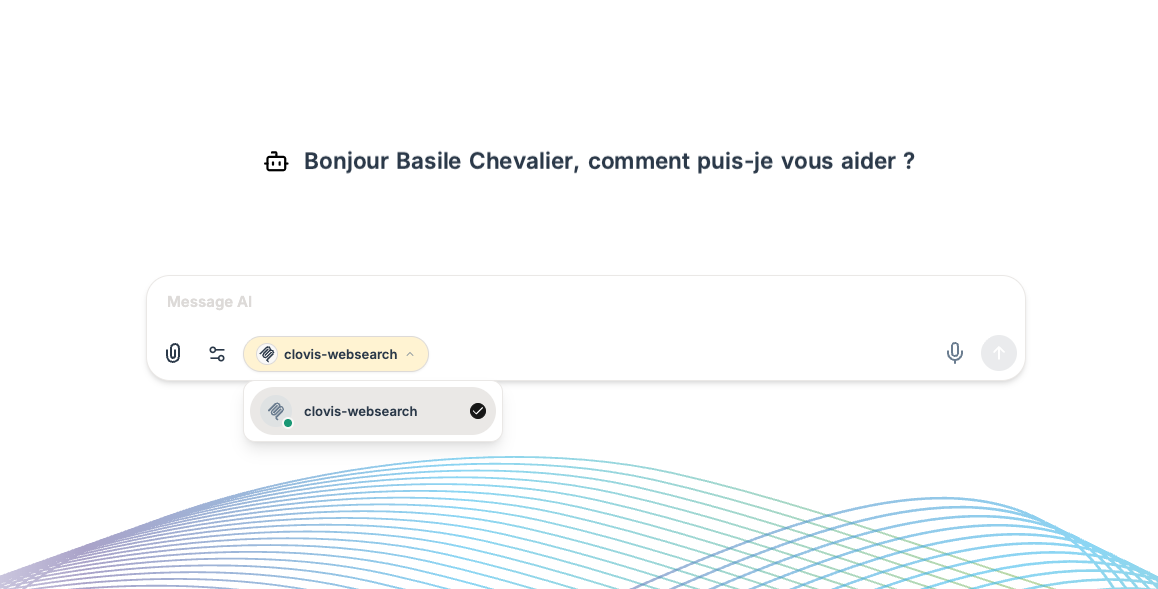
In this example, WebSearch appears as “clovis-websearch”. The checkmark indicates that it is selected for the conversation.
Then start your request with “Use WebSearch to…” and specify the subject or links to consult. See the MCP page for the activation steps.
Choose the right use case
| You want to… | Ask Clovis to… |
|---|---|
| Find information without knowing where it is | Search the Web |
| Read or compare pages you have links to | Extract their content |
| Identify useful pages on a website | List relevant links |
| Understand a subject spread across several pages | Explore part of the website |
Copy the following prompts into chat. Replace the items in square brackets with your subject or URLs.
Find recent information
Prepare a meeting, review developments in an industry, or find an announcement by specifying the period and sources that interest you.
Example: research updates before a meeting
Use WebSearch to find announcements from the past 7 days
about enterprise collaboration solutions, prioritizing
vendors' official announcements and information relevant to France.

Select no more than 5 distinct announcements and provide a table with:
- the company name;
- a two-sentence summary of the announcement;
- its publication date, if available;
- its potential relevance to a team of 50 people;
- a link to the source.

Distinguish features already available from upcoming announcements.
Do not fill in missing dates and avoid duplicates.
Finish with three takeaways for a team meeting.
Features
More ideas to try
- Prepare a meeting: “Find official announcements from [COMPANY] published this month and summarize three useful topics for our meeting. Cite your sources.”
- Find an announcement: “Search for the exact phrase ‘[OFFER NAME]’ only on [DOMAIN] and give me the matching pages.”
- Find illustrations: “Find images of collaborative offices with their source page and a short description. Indicate when reuse conditions are not specified.”
This research is performed when you send the message; it does not schedule automatic monitoring.
Read and extract page content
Already have the links? Ask Clovis to read the relevant pages and return the information you need. You can request a summary, a table, or structured text to reuse in your work.
Example: compare three offers
Use WebSearch to read these three offer pages:
[URL 1]
[URL 2]
[URL 3]

Extract only information found on these pages and create a table with:
offer name, intended audience, displayed price, billing unit,
included features, limits, and commitment terms.

Keep the original currencies and distinguish monthly from annual prices.
For each offer, add a link to the page used.
If information is missing, write “Not specified on the page”.
If a page is inaccessible, state this without inferring its contents.

Finish with questions to ask the suppliers before choosing.
Features
More ideas to try
- Read an article quickly: “Read [URL] and summarize its five main ideas. Separate reported facts from the author's opinions.”
- Retrieve content: “Extract the main content of our page [URL] as Markdown, with headings and lists, without menus or the footer. Flag anything you cannot retrieve.”
- Prepare an event: “Read [PROGRAM URL] and extract the sessions into a table: time, topic, speaker, and room.”
Extraction depends on what the website makes accessible. It does not guarantee access to private areas or content behind a login, or an exact reproduction of the page layout.
Identify useful pages on a website
Before reading a website in detail, request a targeted inventory. This step identifies URLs; reading their content can then be a separate request.
Example: find help resources
Use WebSearch to identify help pages on [WEBSITE URL].

Stay on this domain and prioritize help sections,
FAQs, and getting-started guides. Limit the inventory to 20 URLs
and two link levels from the starting page.

At this stage, list links without extracting text from every page.
Group URLs by section when their paths make that possible.
If a section cannot be identified, state this.

Then suggest the 5 pages to read first to discover the service,
noting that this selection is based on the identified links.
Features
More ideas to try
- Prepare a redesign: “List up to 30 URLs in our section [URL] to prepare a content inventory. Group them by path.”
- Find the right resources: “Identify training pages on [WEBSITE], then give me the links to review.”
- Continue reading: “Now read the five selected pages and prepare a discovery path for a new employee.”
Explore several pages on a website
Clovis can follow links from a starting page and retrieve content from the pages it encounters. This exploration, also called a crawl, gathers information spread across part of a website.
Example: prepare a supplier profile
Use WebSearch to explore the public website [SUPPLIER URL]
and prepare a supplier profile for our procurement team.

Stay on the supplier's domain. Read no more than 15 pages,
within two link levels of the starting page.
Prioritize pages about offers, services, support,
and customer references. Exclude job listings and blog archives.

Prepare a summary with:
1. The supplier's stated activities.
2. Its offers and intended audiences.
3. Support arrangements explicitly mentioned.
4. Customer references cited on the website.
5. Missing information to request during a meeting.

Add links to the pages used for each section.
Present marketing claims as the supplier's statements,
without treating them as independent verification.
List the pages consulted and any access failures.
Features
More ideas to try
- Prepare an FAQ: “Explore up to 10 pages in our help section [URL] and suggest an FAQ with 8 questions, linking to the source page for each answer.”
- Consolidate content: “Browse our section [URL], up to 15 pages, and gather passages about [SUBJECT] by topic, with their links.”
- Get started with a service: “Explore the getting-started guides on [WEBSITE] and prepare a step checklist, citing the pages consulted.”
A limited exploration does not necessarily represent the entire website. For a large scope, identify links first, then select the sections to read.
If search is not responding
You can ask: “Check whether WebSearch is available and indicate whether a service issue is preventing my search.” This check covers the service, not the availability of each website visited.
If a page remains inaccessible, provide another URL or paste the relevant passage into the conversation to continue the analysis.
Get an answer that is easy to verify
Specify the scope, period, and expected format: summary, table, link list, or structured text. Ask for sources and missing information. For an important decision, open the cited pages to check their dates and the context of the information used.