Explore the interface and navigate
The Clovis chatbot brings together your conversations and the artificial intelligence features provided by your organization. Depending on your permissions, some entries may not appear.
Your organization will provide you with the URL (for example: company.clovis-ai.fr).
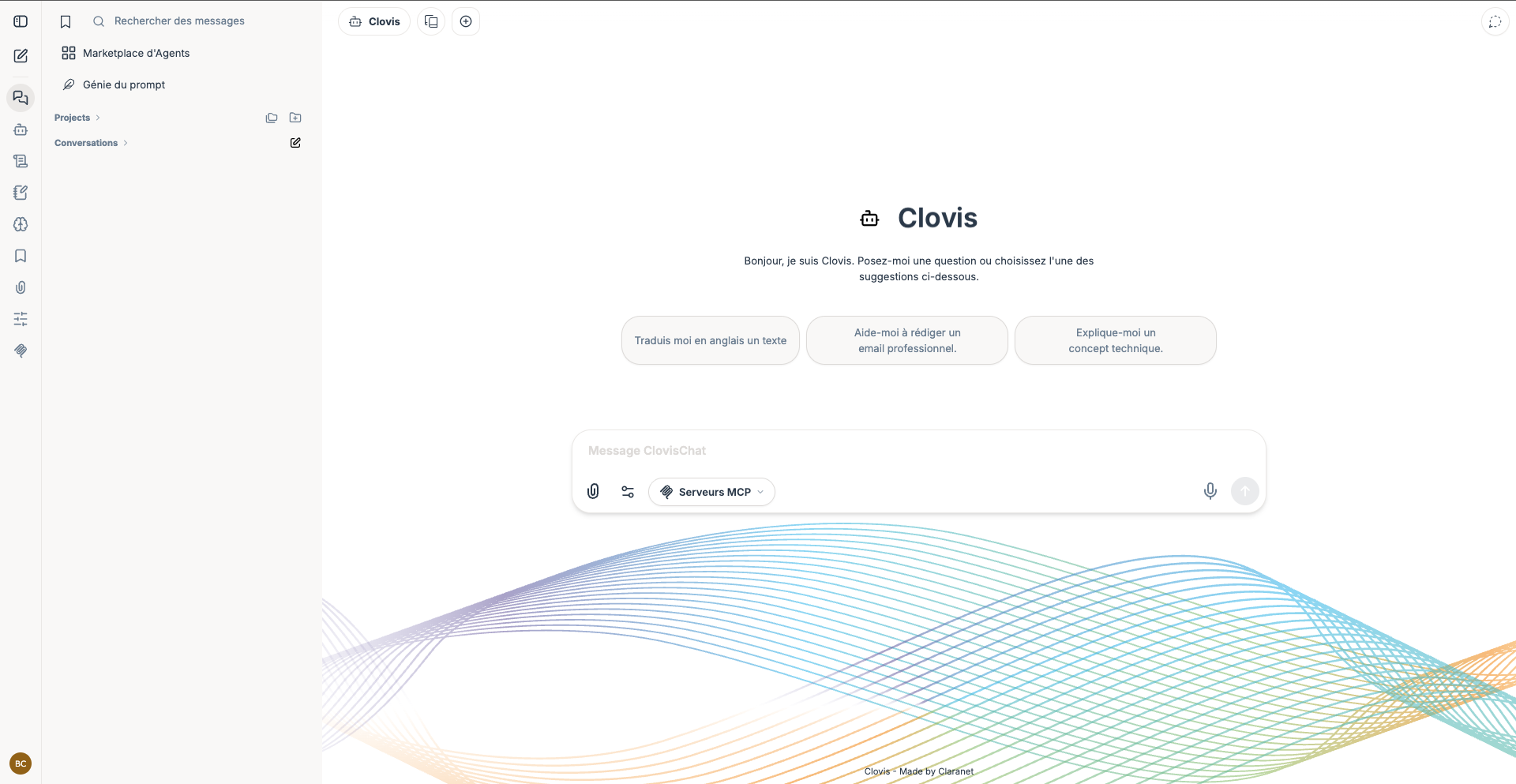
Main areas
| Area | Use |
|---|---|
| Navigation bar | Open conversations, agents, skills, prompts, memories, and available MCP servers. |
| Side panel | Search messages, browse your history, open a project, or start a conversation. |
| Top selector | Choose the model or agent you want to interact with. |
| Main area | Read responses and continue the conversation. |
| Input area | Write a request, attach a file, adjust options, and select MCP servers. |
The suggestions on the home screen provide examples of requests. Select one or enter your own instruction directly.
Start a conversation
- Select the new conversation icon in the navigation.
- Choose the model or agent suited to your task.
- If necessary, enable the relevant MCP tools from the input area.
- Write your request, optionally attach a document, then send it.
Start a new conversation when you change topics. This prevents the context of a previous exchange from influencing the new response.
Find a previous exchange
Conversations are saved in the side panel history. Use message search or bookmarks to find an important exchange more quickly.
Choose between a model and an agent
A model handles general requests. An agent adds a configuration designed for a specific use case: instructions, document context, skills, or MCP servers. If an expected agent does not appear, it may not be shared with your account; contact your administrator.
To improve your results, continue with Querying Clovis effectively.